![Logo - light.png]](https://success.territorium.com/hs-fs/hubfs/Logo%20-%20light.png?height=20&name=Logo%20-%20light.png)
1. NEW learners to LifeJourney
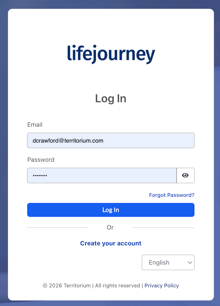
If you have not created an account on LifeJourney yet, go to https://life.territorium.com and select Create your account.
Your account creation starts with a question about a code. If you have a test code, enter it in the field provided and click the Continue button.
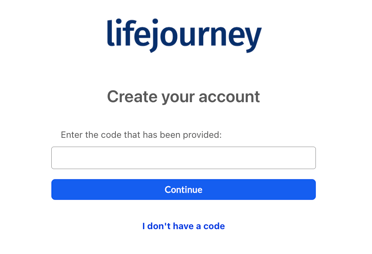
You will then be prompted to complete your account creation and your exam will be waiting on your home page when you are done or when you log back in to LifeJourney.
1. EXISTING LifeJourney users
Be sure to have logged in to LifeJourney at https://life.territorium.com with your existing acocunt credentials. Your home page offers two ways to add a test code to connect to assessments from your institution.
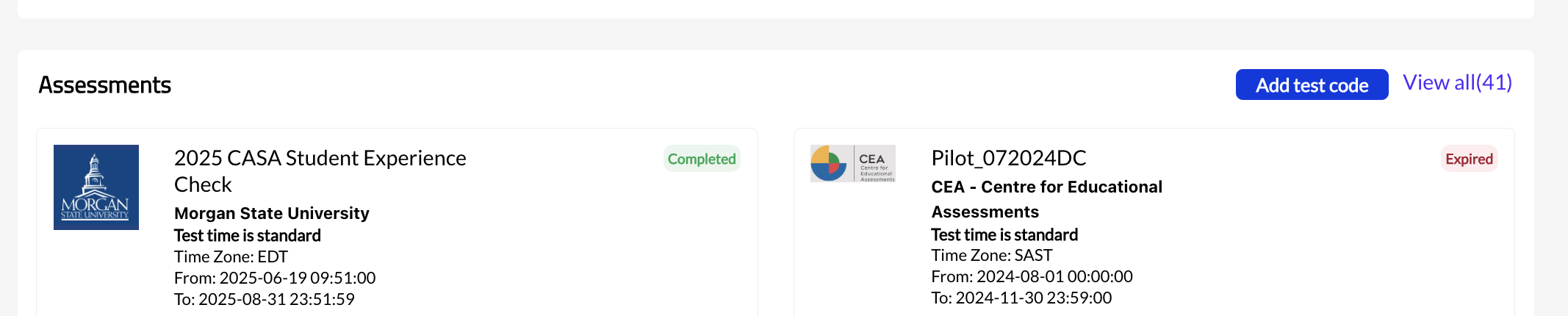
Scroll down to your Assessments section on your home page. Every learner account has an assessments sections for any exams you might have taken or will be taking.
The Add test code blue button to the right of the Assessments section header will allow you to put in test codes for additional exams.
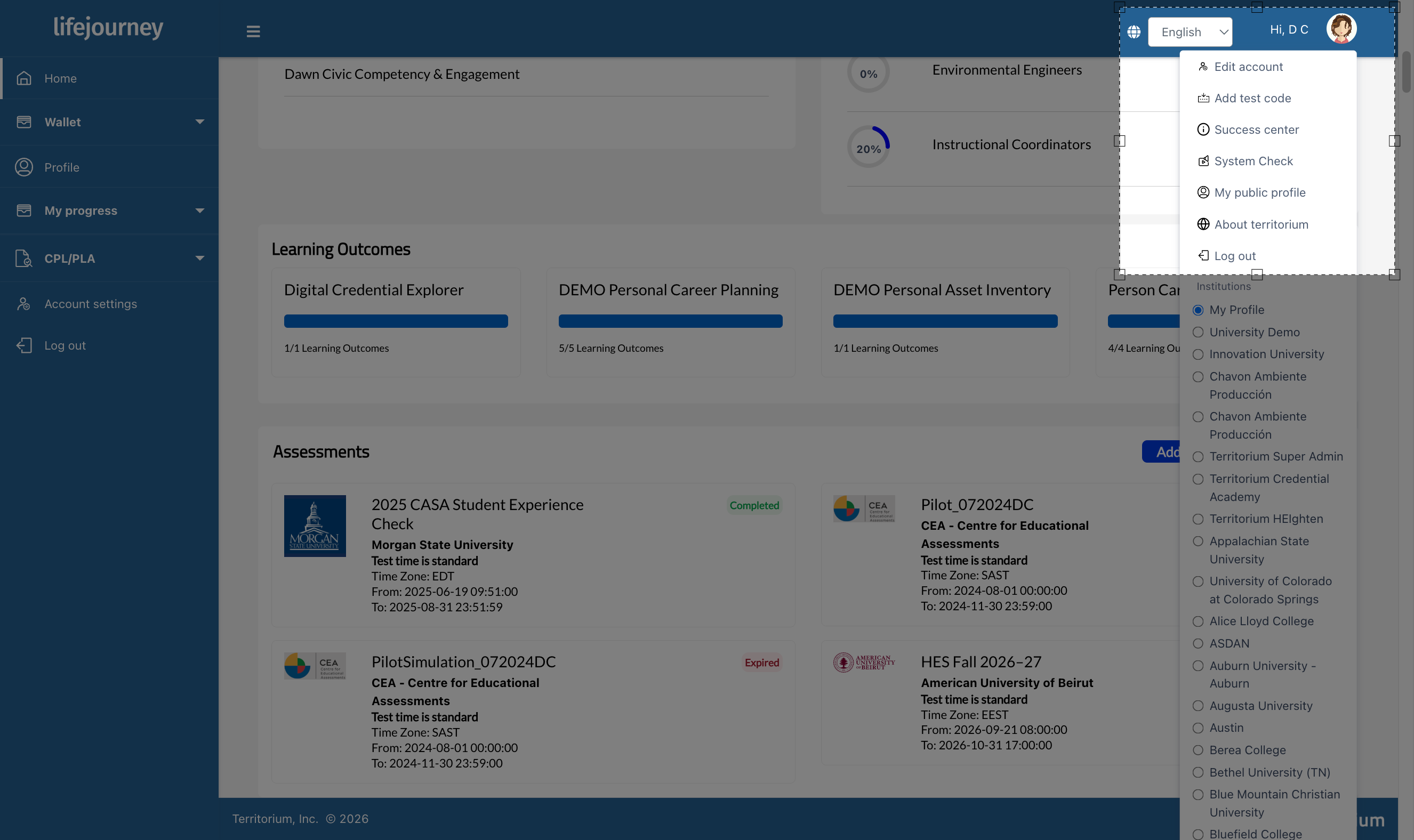
Additionally, your LifeJourney user menu in the upper right hand corner of the screen will open and give you an option to Add test code (usually the 2nd option from the top).
Both of these options will add an additional exam to your home page assessments section with a status button that will indicate what your code has opened:
- Open – ready to start test
- Closed – test has been completed and submitted
- Continue – test is in progress and hasn’t been submitted
- Closed test window -test is currently unavailable
- Test window hasn’t opened – test start date/time has not been reached yet