![Logo - light.png]](https://success.territorium.com/hs-fs/hubfs/Logo%20-%20light.png?height=20&name=Logo%20-%20light.png)
How it works
- Download the certificate from LinkedIn Learning. In LinkedIn Learning, go to My Content → Learning History, find the completed course or learning path, select More (...) → Download certificate. LinkedIn provides the Certificate of Completion as a PDF.
- Go to the LifeJourney Wallet. From the web wallet at https://life.territorium.com or the LifeJourney mobile app, select the Add button.
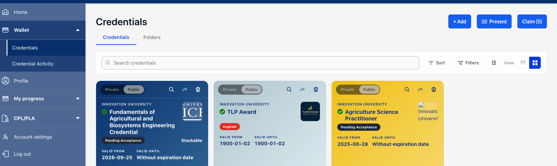
- Upload the LinkedIn Learning certificate. Select the Upload a credential file option and upload the downloaded PDF. LifeJourney supports PDF and several other document/image formats for externally earned credentials.

- Add the credential information. The learner supplies the credential title and description and can add the relevant skills. After saving, the credential appears in the wallet's Self-asserted section and its origin is identified as external.
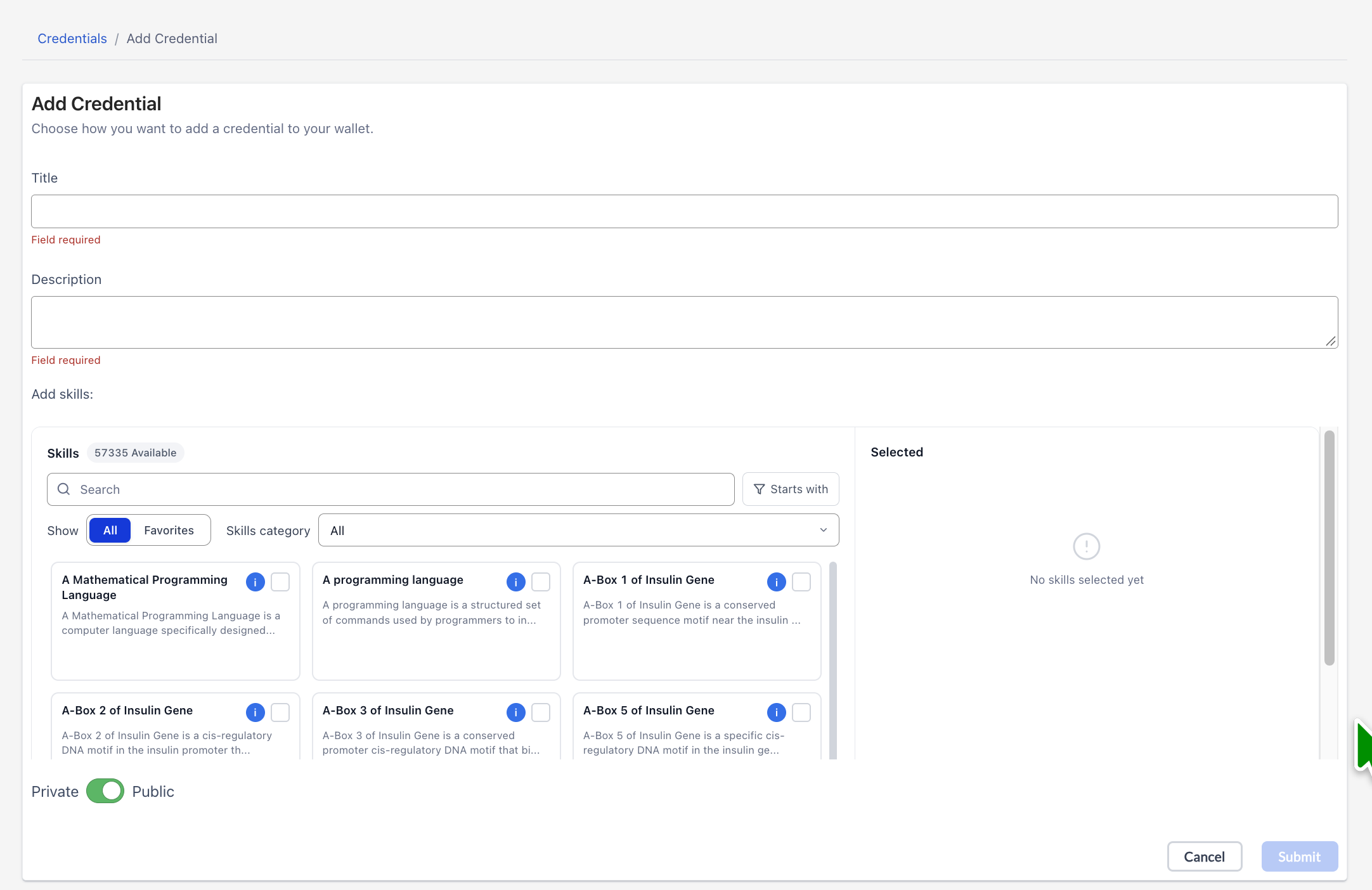
Be sure to add relevant skills as they contribute to opportunity fit for both Learning Pathways and Jobs in the mobile app.
The PDF import proves that the learner has provided evidence of the accomplishment, but LifeJourney isn't receiving a digitally signed credential directly from LinkedIn and therefore cannot return verification status when shared.