![Logo - light.png]](https://success.territorium.com/hs-fs/hubfs/Logo%20-%20light.png?height=20&name=Logo%20-%20light.png)
LifeJourney allows you to manage all of your digital credentials in one easy-to-use website. To import other verified credentials, digital certificates, or even photos of paper-based certificates you may have, follow the steps below.
Select the Add Credential button on the Wallet to add a credential you have earned elsewhere to your Wallet.
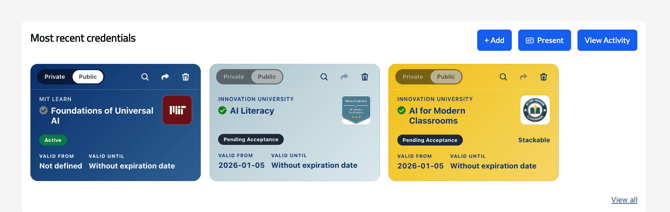
Select QR code, Paste or Upload depending on how you will add the credential.
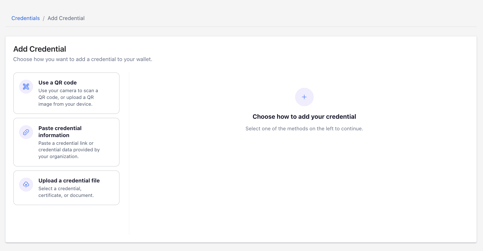
QR Code that awards a credential
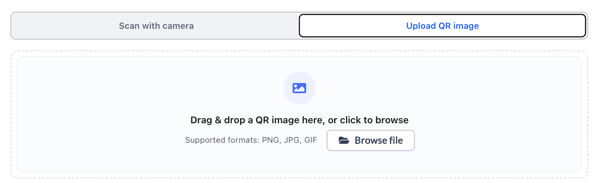
Some open badges from your organization or another digital wallet provide a QR code to download or scan that awards the credential automatically to you. Either scan the image with your phone/laptop camera or upload the saved QR code image to utilize this option.
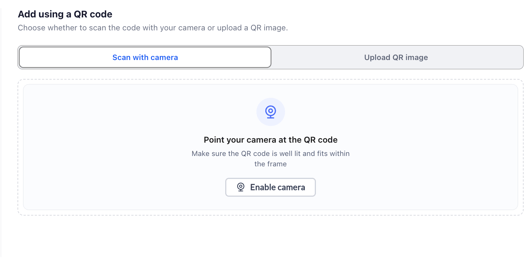
Uploading a QR image will fetch the graphic and code for a credential and add it to your wallet. Simply browse to your saved QR code image file and upload it.
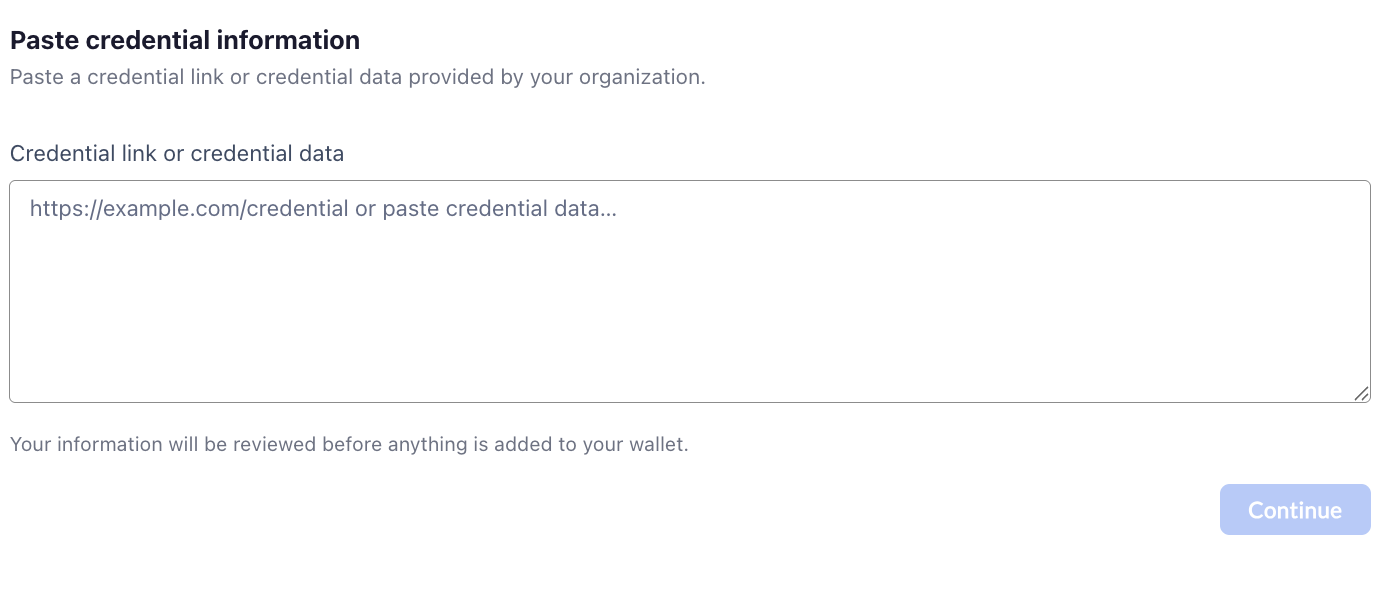
Paste credential information
Another option is to copy and paste the JSON code or URL from their platform. You might find this information under a button called “View JSON” or “View Code” and the other wallet provider may give you the option to download it to a file or copy it to your clipboard. Paste the code into the “Json Content” or the "Credential URL" box and click Continue.
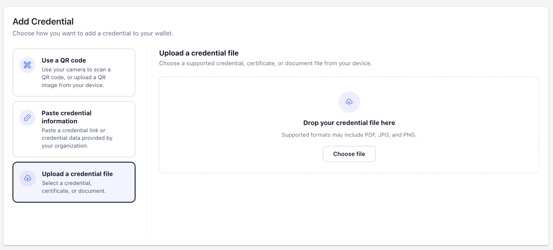
Uploading a File for an existing badge
Importing your own credentials to the platform will label your credential and any related skills as “user-submitted.”
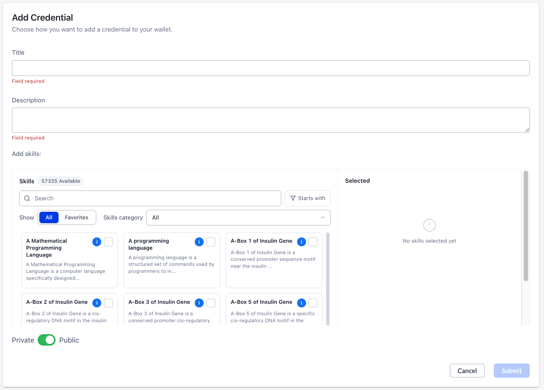
When uploading, you need to add the title, also known as the name, of your award and then a description. These pieces of information help describe the credential if you share it from the wallet.
You can upload any PDF or image file that might contain the image of your completed certificate or credential. Allowed file types include Word, Excel, PDF, PNG, JPG, JPEG, SVG. Click the Choose files button to navigate to the files on your device.
Skills catalog
Before saving an uploaded or pasted credential, you should also make sure to look up and apply at least one skill to the credential. Adding the skills associated to the credential will help update your opportunity fit score so you can track your fit for career pathways and specific job opportunities.
To apply a skill, sse the free text search box to type in a related skill or search by category. Add the desired skill by clicking the selection box with that skill title. You can also get a definition of the skill by hovering over the blue "i" or information button. Select as many skills as you think apply to the topic of your credential and they will show up on the Selected list to the right of the skills catalog.
Private vs. Public
By default all credentials are designated Public unless marked Private by the Learner. 
Be sure to click Submit when you are done with the skills and visibility selections.
How to access your uploaded credentials
You can filter your wallet by the different kinds of skills using the filtering tools to see your uploaded or "Self-reported" awards, click on the filter button, then select the credential status of Self-reported and click Apply filter.
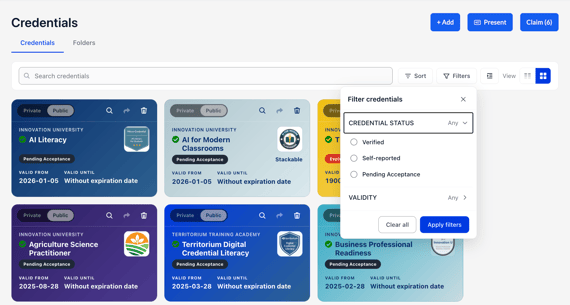
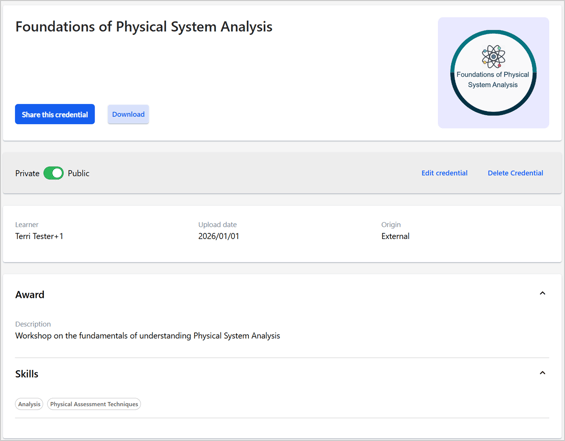
The details of the credential will show the information you added and the related skills and show that the origin was “external” to the LifeJourney wallet.
If you are importing credentials from Credly, check out this article on how to upload your baked images.