![Logo - light.png]](https://success.territorium.com/hs-fs/hubfs/Logo%20-%20light.png?height=20&name=Logo%20-%20light.png)
Your primary access point as a Learner will be via the LifeJourney Mobile app. Many of the same features of the Life Journey mobile application are available to learners via the Web application (https://life.territorium.com).
This article will discuss how you can use the LifeJourney application to earn digital credentials and claim the associated open badges to be stored in your digital wallet.
Please also refer to the article Using My Wallet on the Web for information on managing your Wallet over time.
What is a digital credential
Educational institutions, training programs, or other learning providers can now issue verifiable credentials which let you share your achievements with others in a secure and trustworthy manner. Instead of relying on paper certificates or transcripts, which can be forged or lost, verifiable credentials are stored digitally and can be easily accessed and shared online. The special thing about verifiable credentials is that they come with a digital signature, making them tamper-proof. This means that when you share your credential with someone, like a potential employer, they can verify its authenticity and ensure that it was indeed issued by a legitimate source.
Manual assignments via Learning Outcomes
Find learning outcomes to complete
Learning outcomes represent the specific learning goals that need to be achieved to build knowledge, skills, and abilities that are the focus of the learning experience(s) to which they connect. A learning outcome will be associated to a specific achievement to complete such as an assessment, quiz, assignment, or other activity. Your learning outcomes can be found under your My Progress > Achievements tool.
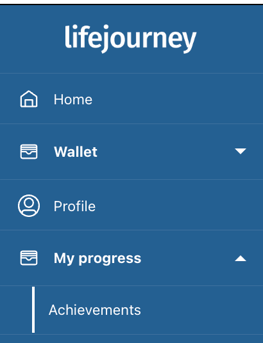
To find your learning outcomes from the Web application, go to My progress then Achievements.
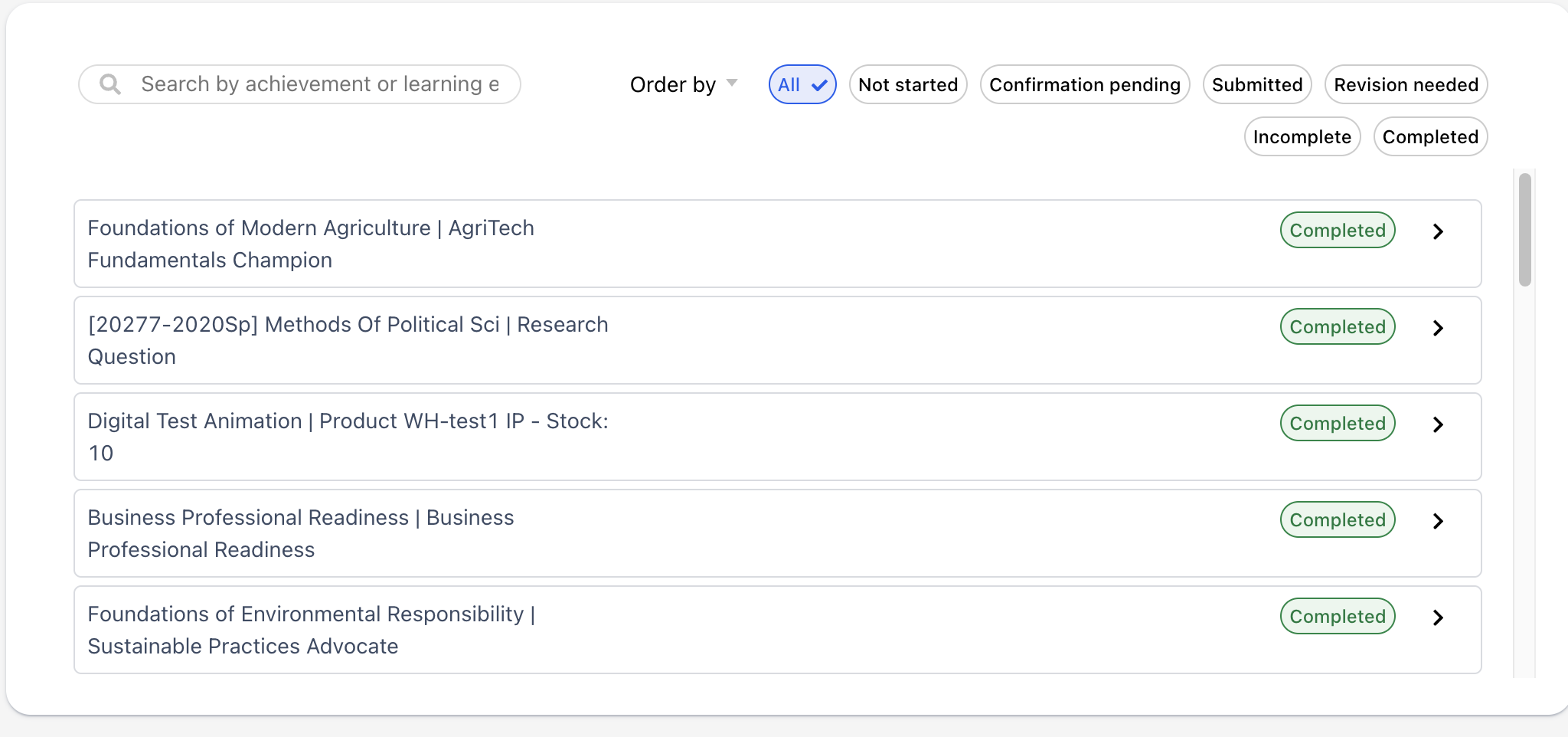
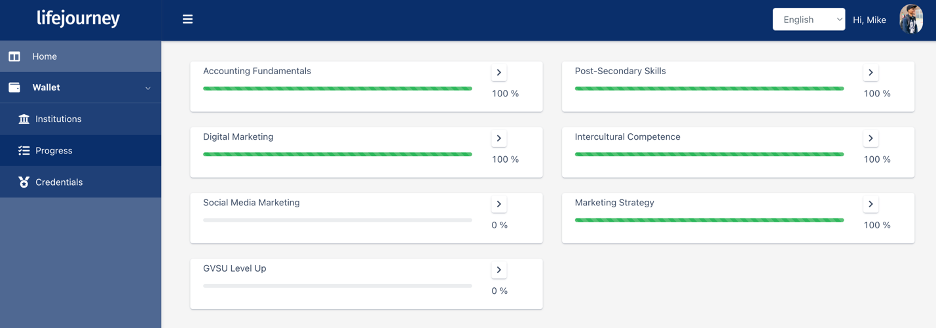
Click through the learning outcomes via the right arrow to get to those that need your attention. From this view, you will also see a percentage completion.
Submitting Evidence
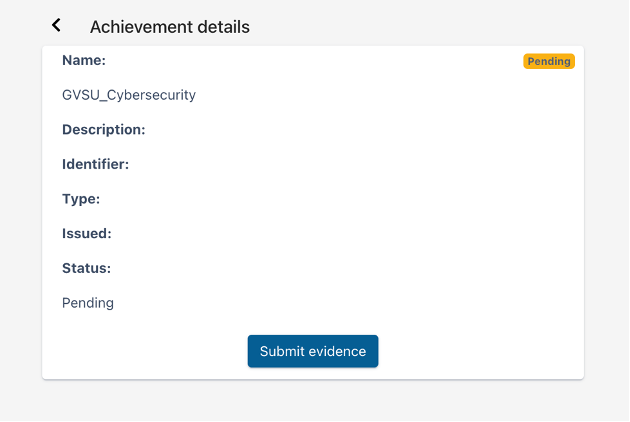
If your credential requires evidence to be submitted, you will utilize the My Progress > Achievements tool to access the learning outcomes you need to augment with evidence. The process to upload evidence files via the Web is the same as via the mobile app. Simply click through the learning outcome until you get to the achievement detail screen.

Use the submit evidence button to upload in the same way that you did via the mobile app.
Modifying Evidence
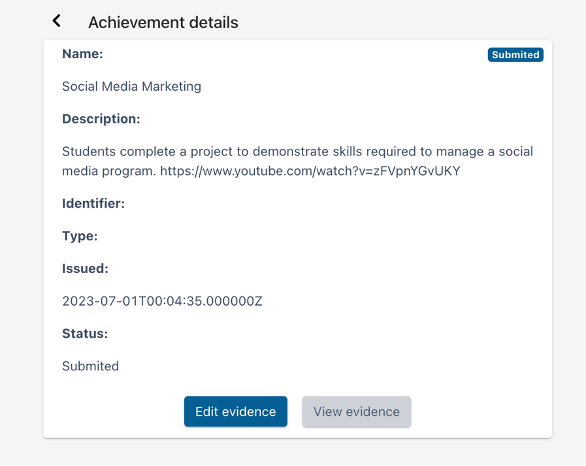
The process for modification is similar as in the mobile app. For those learning outcomes that are marked as submitted click the right arrow.

Select the button to edit or view the evidence.
Completing Assessments
If you are assigned an Assessment exam in the LifeJourney platform, such as an EPP or HEIghten exam, you may be awarded badges automatically because of their completion. In this case, there is no additional action for you to take. Just complete your assessment exam.
Automated assignments via items in your Learning Management System
If your instructor is using a learning management system, they might offer you the completion of badges as a result of activities in your course such as the completion of quizzes or assignments. In this case, there are no actions for you to take in the LifeJourney platform. Just complete your normal coursework.
Receiving your badge
Once the administrator approves your submission, you will get a notification that a new badge is added to your Wallet and you’ll see the skills you have collected as well. You will receive an email when a badge is available.

When you login to your wallet, you will see the badge designated as Pending Acceptance.
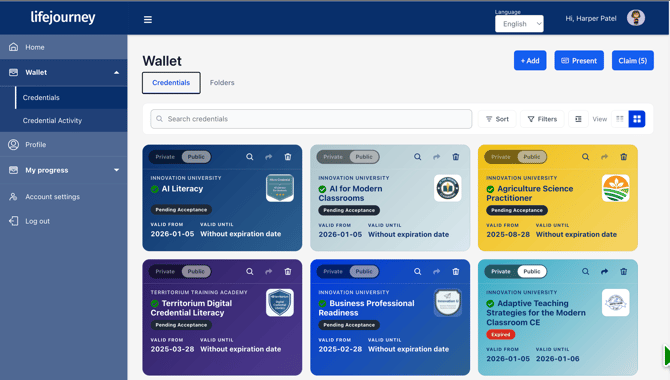
Click on the badge marked Pending acceptance to start the process to claim the badge.
On the badge detail screen, click the blue button marked Accept/Claim credential.
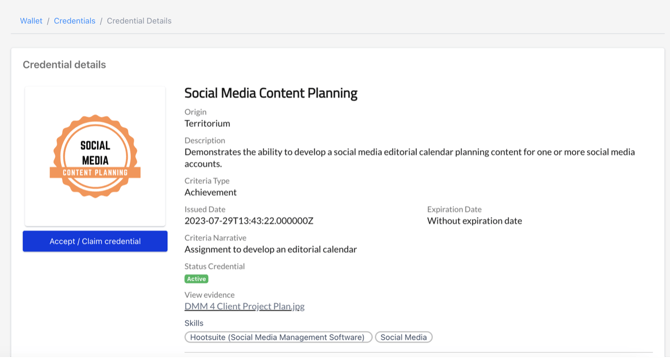
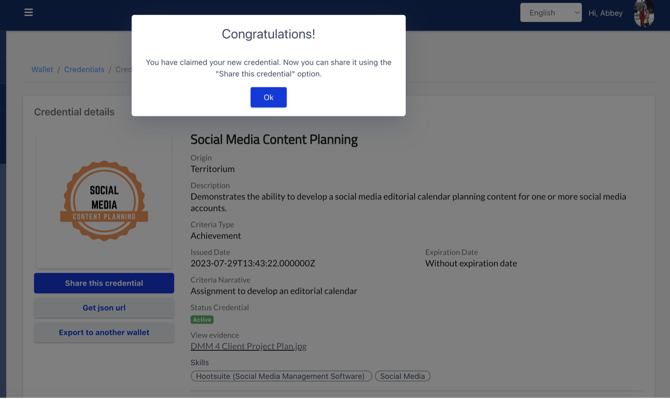
You will then receive a completion screen and the badge will display in your wallet.