![Logo - light.png]](https://success.territorium.com/hs-fs/hubfs/Logo%20-%20light.png?height=20&name=Logo%20-%20light.png)
What is the Digital Wallet
All LifeJourney users are provided with access to a Digital Wallet to manage your credentials. The wallet allows you to:
- manage your access to different Institutions
- track progress on learning experiences and related learning outcomes, to earn credentials
- manage the credentials you have earned
- share credentials you have earned
Access your credentials on the Mobile app
Make sure you have downloaded and installed the LifeJourney mobile app and created your account (either with a code from an email or without a code).
Select the Wallet icon from the bottom of the application.
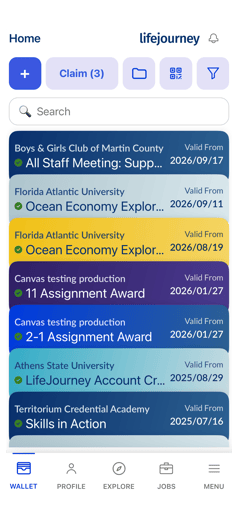
On this screen, you will be able to see all the badges you have earned for credentials that have been issued.
Click on any badge ribbon to see the details. 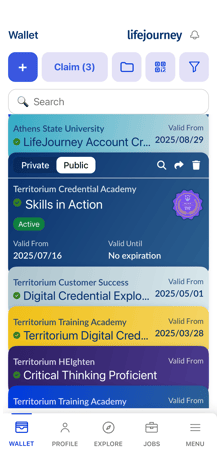
Key features of the wallet
In the wallet you can claim, manage, and share your credentials. You can sort through these credentials by scrolling, keyword search, or filtering by achievement type (e.g.: Status, Age, Verification, etc.)
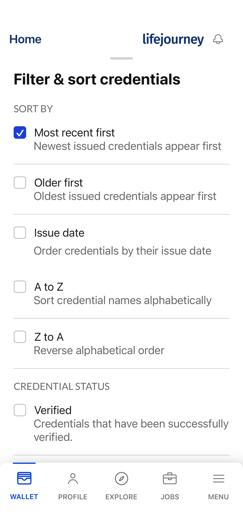
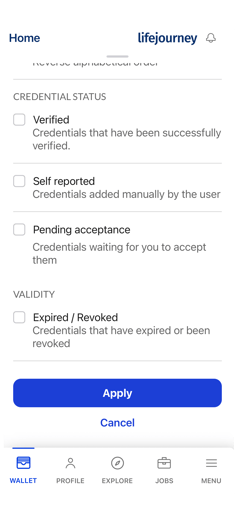
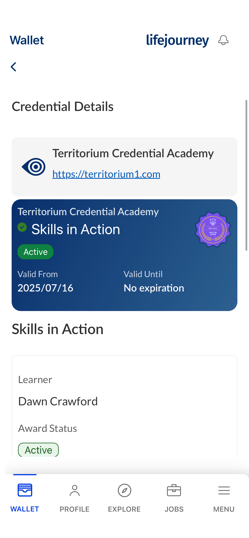
Credential Details: Open any credential to see all the "metadata" contained within it. Your institution will author the metadata and issue credentials to you in industry-standard formats of verifiable credentials that are made for education. An Open Badge credential relates to only one credential and you will see references to this term or “OBv3.0” throughout the application.
 .
.
Award Name and Issuer: The first two lines of the credential card give you the most important information, the issuer (most likely your educational institution) and name of the award along with the award image in a small thumbnail version.
Verification Type: Your award has been issued via a certain type of verfication that shows using either a Green Checkmark, Grey Checkmark or No Checkmark:
-
Green Checkmark - your award is verifyable upon sharing using a simple tool and is created and issued using 1EdTech OpenBadge 3.0 standards. This green checkmark will add a level of trust and validity to credentials and gives potential employers and others you share your awards with the additional information about validity right on the share page you provide. These types of credentials are usually issued by accredited colleges and universities.
- Grey Checkmark - your award has been issued by a third-party issuer such as private training companies, industry and professional associations, certification bodies, product vendors, bootcamps, and other entities that set standards, assess competencies, offer instruction or learning services, and confer credentials independently of employers or accredited colleges and universities.; these awards, though created using OpenBadge standards, do not provide the ability to check validity or verify using the LifeJourney wallet tools.
- No Checkmark - your award is likely self-asserted or self-reported and does not have any metadata to provide for validation.
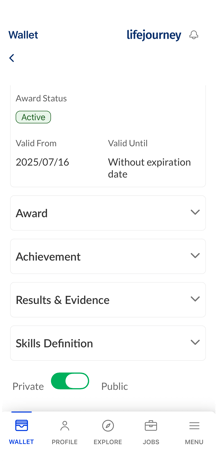
Award Status: Your award status will show both on the credential card and the detail page and will be one of the following: ACTIVE, EXPIRED, PENDING CONFIRMATION, REVOKEDValid From - Valid Until: A credential could have an expiration date that would be expressed in a from-until format. If there is no expiration, the valid from date is usually when the award was issued by LifeJourney.
Achievement: The accomplishment being recognized, including what was achieved and the criteria required to earn it.
Award: The credential issued to a specific learner, confirming that the learner has earned a defined achievement.
Results & Evidence: The learner-specific outcomes and supporting evidence that demonstrate how the learner met the requirements for the achievement.
Skills Definition: The specific skills or competencies represented by the achievement, typically expressed through alignment to defined skills or competency frameworks.
Private/Public: This toggle allows individual credentials to be available for viewing for everyone (public) versus only the owner of the wallet (private).
Tip: Learn how to earn and claim a credential – mobile.
Adding credentials
LifeJourney is best used when all of your verified credentials, skills, and competencies are held in your wallet. Many credentials are earned through your institution directly, but you can also upload files or verified versions of your credentials earned elsewhere. Collect other forms of credentials you might have such as digital PDFs or images of your awards all in one place using the digital wallet. Each of these relate to key skill(s) that you can track to keep your opportunity fit scores up to date for learning pathways and jobs in the mobile app.
Tip: See how to import other verified and non-verified credentials into LifeJourney to better use its features for your job search.
Sharing credentials
The wallet also lets you share your credential with others, whether you want to post it to your social media account or if you want to send a verifiable version of the credentials to an employer.
Learn how to share
- an individual credential
- a group of credentials
- or your credentials via a public profile