![Logo - light.png]](https://success.territorium.com/hs-fs/hubfs/Logo%20-%20light.png?height=20&name=Logo%20-%20light.png)
What is the Digital Wallet
All LifeJourney users are provided with access to a Digital Wallet to earn, access, manage and share verified and self-reported credentials.These tools allow you to:
- earn credentials
- manage the credentials you have earned
- share individual or groups, with potential college and career contacts through convenient networking tools like QR codes and links
- decide how you want to share credentials that include assessment results or achievement evidence
- provide verification tools for the contacts you share credentials with based on 1EdTech national standards
Access your credentials on the Web
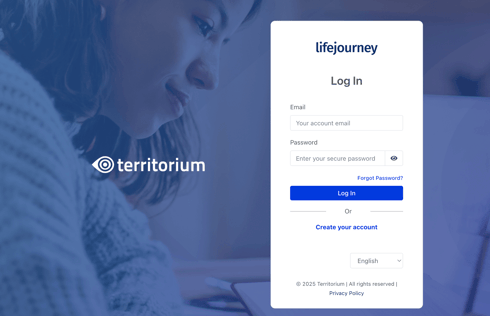
Log in to https://life.territorium.com.
Choose the Wallet > Credentials. On this screen, you will be able to see all the badges you have earned. Click the Credential for detailed information.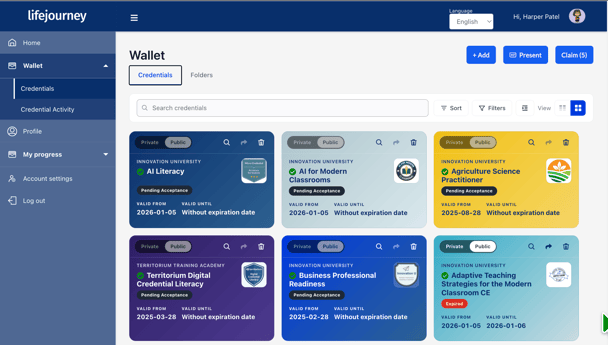
Key features of the wallet
In the wallet, you can claim and manage your credentials and easily find what you need by scrolling, searching by keyword, or using available filters.
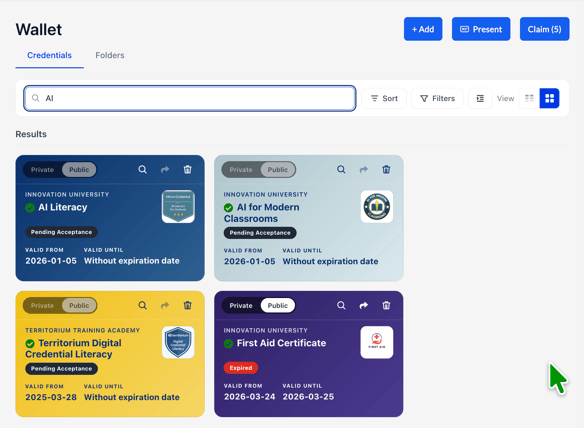
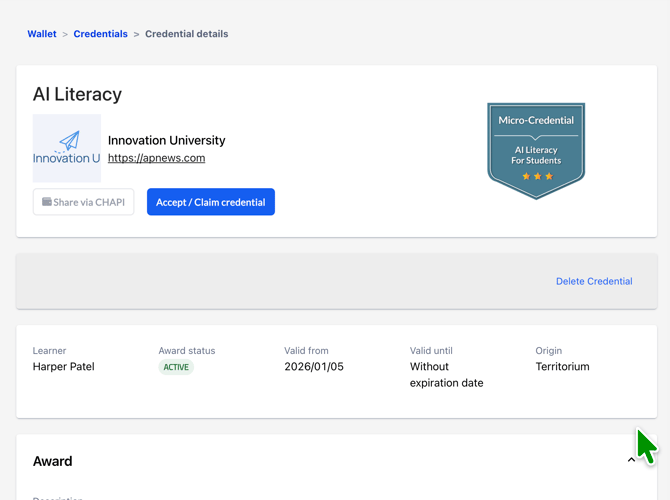
The details page for a credential will show when you click the magnifying glass icon ( ) on the card and it will include more information about the award and how it was achieved.
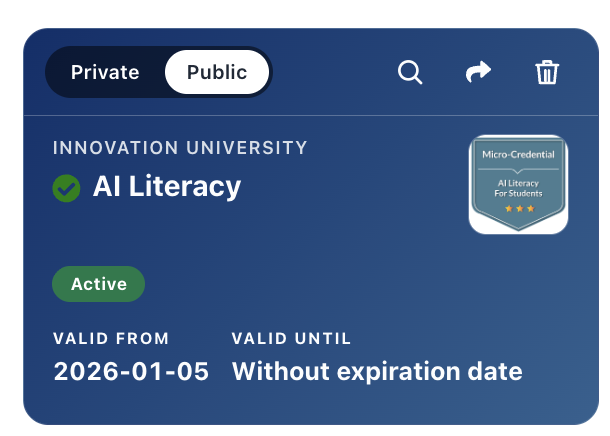
Each credential card gives you tools to view the credential details, share, or even delete them from your digital wallet. The credential card tools include:
- A private/public toggle to make sure you can control what awards can be seen
- A view tool that lets you open the full credential details including skills, expiration information, award descriptions and criteria along with the issuing organization
- A share tool that provides flexibility for what and how you share about your achievement
- A deletion tool if you no longer want the credential in your wallet
- A visual check indicator to show the verified status
- A visual button to indicate the current status of the credential, including ACTIVE, PENDING ACCEPTANCE, EXPIRED, or REVOKED.
- Validity and expiration information
Sometimes, your institution may issue a credential that brings together multiple learning achievements to show a more complete picture of your progress—similar to how a transcript works.
For example, a degree credential may reference all required courses, or a micro-credential may require completing a combination of courses, assessments, or projects. Credentials like these are labeled “Stackable” so you can easily see that they include or reference additional credentials.
Credential formats:
Your institution issues credentials using industry-standard verifiable credential formats designed for education.
An Open Badge (OB v3.0) represents a single, standalone credential. Throughout the application, you may see this format referenced as Open Badge or OB v3.0.
Some institutions or employers may request a different format called a Comprehensive Learner Record (CLR v2.0). A CLR allows one verifiable credential to aggregate multiple earned credentials, such as a degree or micro-credential that includes several courses, assessments, or projects.
Importing credentials
LifeJourney works best when your credentials, skills, and competencies are stored in your wallet. You can import verified credentials earned elsewhere or add PDFs and images of other credentials, awards, and achievements.
Credentials can be connected to skills you want to track, helping keep your Opportunity Fit up to date. Opportunity Fit shows how your skills align with jobs, education, and other opportunities.
Sharing credentials
The wallet also lets you share your credential with others, whether you want to post it to your social media account or send a verifiable version of the credentials to an employer.
Learn how to share
-
- an individual credential
- a group of credentials
- or your credentials via a public profile
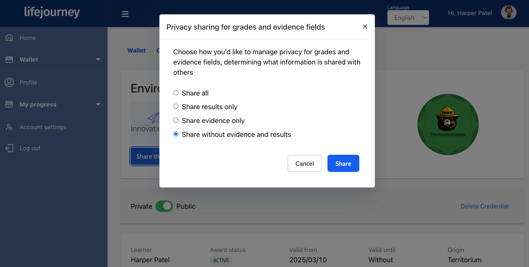
When you choose to share an individual credential, using the share ARROW ( )on the credential card, you will be prompted to disclose what exactly you want to share about your credential before proceding. If an arrow is greyed out, that means that it has not reached the status that it can be shared. In that case, the credential may be pending acceptance, or revoked. Simply accepting/claiming the pending credential will activate the sharing feature on the card.
The Share credential tools include many options to connect your credentials with your contacts, including:
- A downloadable QR code
-
A link to copy or a formatted email with the sharing link
- A preformatted LinkedIn post
- A downloadable PDF version of your credential that can be printed
- Formatted code with the image and credential details baked in that can be pasted in other credential or wallet tools
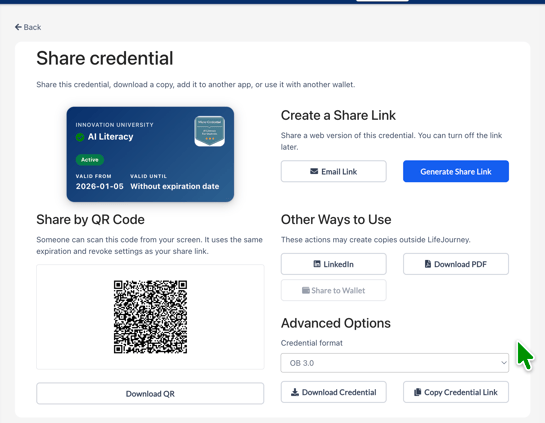
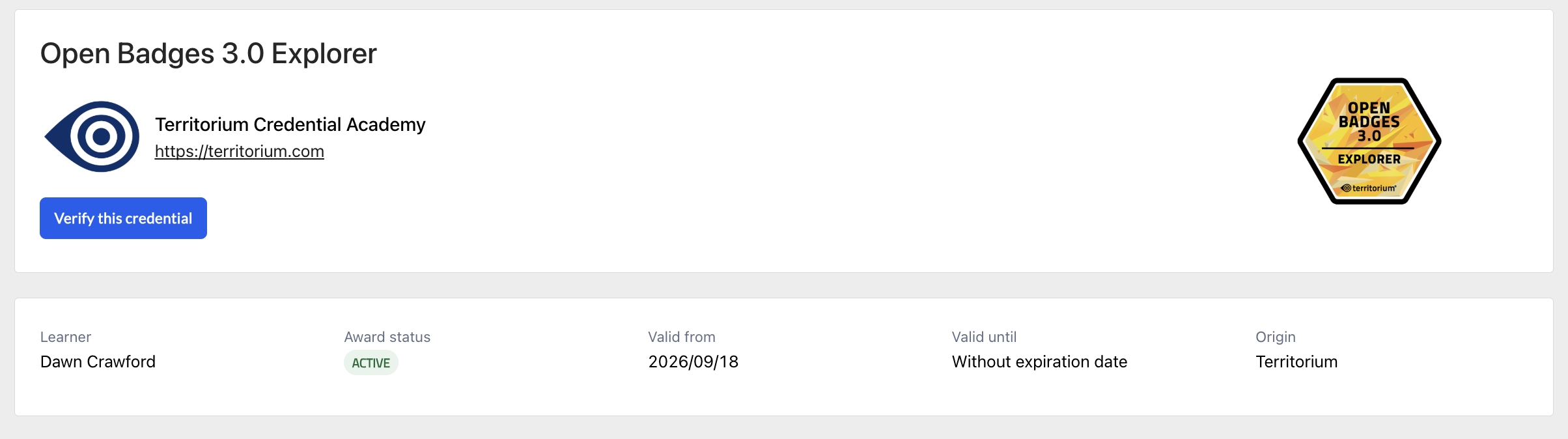
Generating a share link will provide anyone who is viewing your shared credential with an opportunity to verify the award according to 1EdTech OpenBadge standards. This gives additional validity to your credentials - something that employers and other organizations have been looking for with badges and credentials to ensure they are authentic and sponsored.
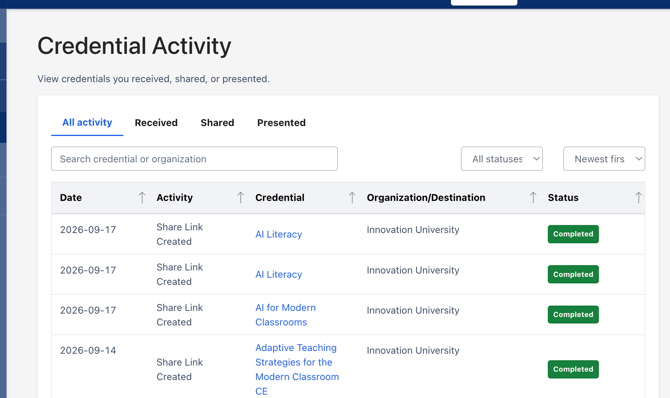
Credential Activity
The wallet also tracks your credential activity, giving you a record of how you have used and shared your credentials over time.